Update 09/2026
New document flow: purchase requests
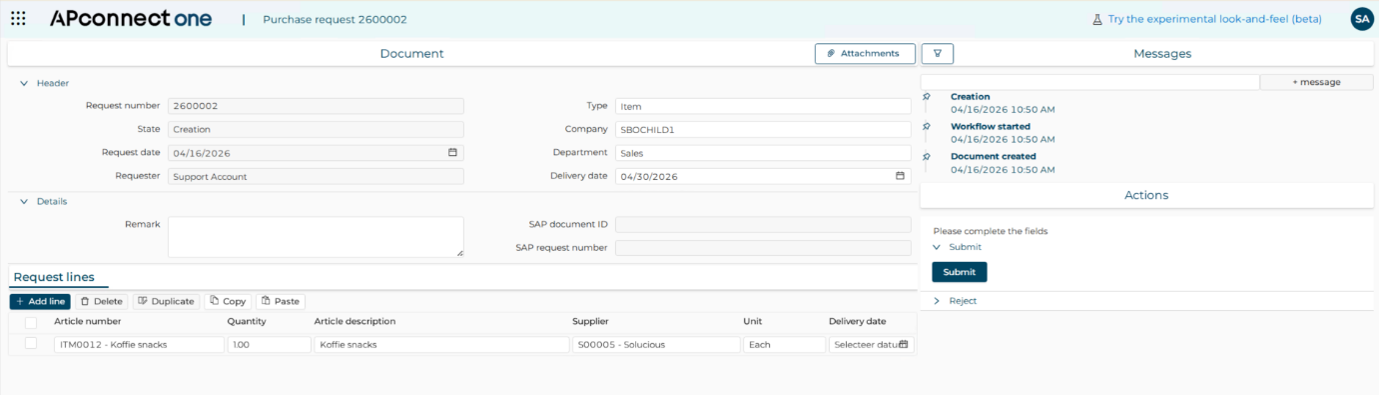
APconnect One now supports the creation and approval of purchase requests. Users can submit requests directly from the APconnect One portal, using SAP Business One master data, without requiring an SAP Business One license.
Purchase requests follow their own workflow while maintaining the same approval experience as invoice processing. Once approved, requests are automatically transferred to SAP Business One, streamlining the purchasing process.
Please contact Amista at sales@amista.com if you would like more information or a demonstration of this new functionality.
Improved attachments viewer
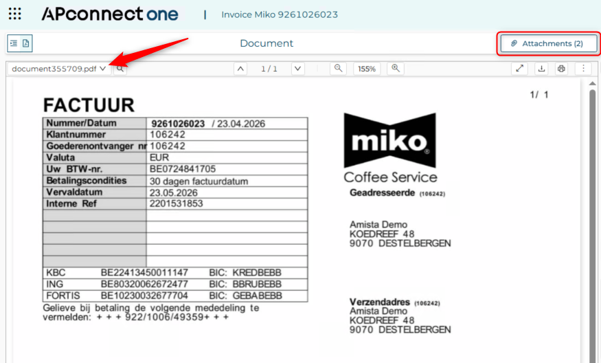
The attachments viewer now provides access to all attachments and related documents from a single interface. Users can switch between documents using a dropdown list, while the attachment badge displays the total number of available items.
Linked documents such as credit notes are also included, and non-PDF files, including email files and Peppol XMLs, are automatically rendered for easy viewing. Each document can be downloaded directly from the viewer.
Support for French e-invoices
APconnect One now supports the reception and processing of French electronic invoices. Incoming e-invoices are automatically received through the certified French e-invoicing network and processed using the standard APconnect One workflow.
The solution also supports mandatory invoice refusal reporting for French legal entities. Users can register a refusal reason in APconnect One, after which the required status reporting is automatically transmitted through the French e-invoicing network in compliance with French regulations.
Please contact Amista at sales@amista.com if you want more information about this feature.
Update 07/2026
View and download files from Key-Entry
You can now view or download files in the key-entry application.
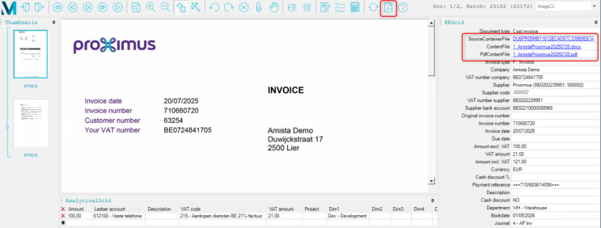
There are two options to open the files or attachments:
- Use the pdf button in the top menu bar, this will open a pdf file containing the pages pdf the current invoice and its attachment.
- Use the links in the fields list to the right, here you can open the original e-mail/UBL file, any attachments and the original pdf file.
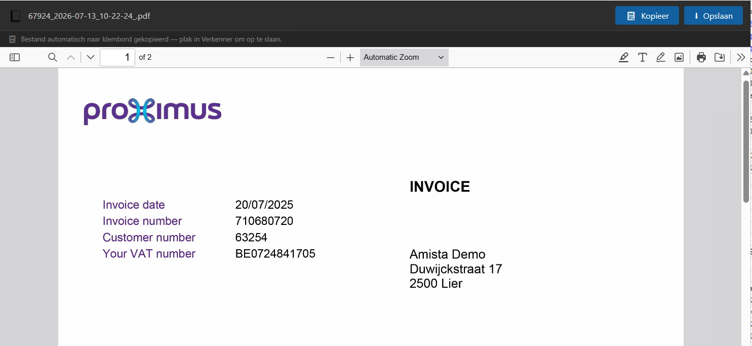
After using one if these options, a new window opens in which you can see the file, copy it, or save it to your local computer.
Update 02/2026
Cost invoices
Manual booking
When processing a cost invoice in the Keyentry application, you can mark it for manual booking.

When manual booking is set to yes, no automatic booking is sent to SAP for this invoice. Instead, after approval, a registration task is assigned to the accounting group in which they can set the book number and/or SAP document id.
Support added for zero amount invoices
It is now possible to process a cost invoice with amount excl. VAT equal to 0. You need to add one analytical line with amount 0 for the booking in SAP to succeed.
Goods invoices
Quantities on the invoice lines are rounded to 4 decimals instead of 2 when linking to an order line.
The match type ‘manual booking’ is no longer remembered based on the supplier; it needs to be selected every time.
VAT amounts on invoice lines with total amount 0 are now automatically calculated as well.
Customer reference
The custom er reference from Peppol invoices is now shown in the batch selection screen of the Keyentry application.

Excel export
You can now export results from task lists or the search archive to an excel file.

Email reminder
The daily email reminder is now mobile friendly and will easily display on any mobile device.
Update 12/2025
Manual booking of goods invoices
You can choose a new match type for goods invoices. Use this match type when an invoice cannot be booked using the order/reception matching in APconnect, and you want to book the document manually in SAP.
How does it work?
You can select a new a new match type in the Key-entry: No matching, manual booking.

After selecting the new match type, the Manual booking field is set to yes, and all invoice lines are removed. You can now finish the document using F6 without entering any invoice lines or extra costs.
After processing the document in the Key-entry, a single task Manual booking is assigned to the accounting group. The invoice is not automatically booked in SAP. The accounting group can choose to submit or reject the document after which the workflow stops.

It is possible to manually fill in the book number and SAP document id in the manual booking step.
New fields available in search and task lists
A range of optional fields were added to the search and task lists fields collection. The optional fields can be show by opening the column settings..

.. and selecting the columns to be shown/hidden.

Amount columns also display the currency symbol now.
Support for archive cost and goods invoices
The system supports the possibility to upload a collection of old cost/goods invoices for archive purposes. No workflow is started for the archive documents, they are added to the existing document collections in the search page.
Update 09/2025
New user interface
When you start up the web application, an interactive tour will automatically begin, guiding you step by step through the most important new features.
A tour will start on every screen where changes have been made, so you can immediately familiarize yourself with the updated environment.
We recommend that you complete the entire tour!
Of course, you can always revisit it later via the help menu. This can be found at the top right corner (bulb icon).

What can you expect?
- The same fresh, modern look and feel
- Improved navigation and clearer menus
- Smart shortcuts and overviews on the home page to help you work faster
Cost Invoices
- The booking rule template has been split for invoices and credit notes.
- Keyentry can now remember and apply separate sets of booking rules for invoices and credit notes.
Goods Invoices
- New field “Set VAT codes” in the invoice header: this sets all VAT codes and calculates VAT amounts on lines without a VAT code.

- General ledger account is transferred from the order line and remains editable in key entry (SmartLynx update required)

- New option: have deviations approved by the purchasers group instead of the order responsible (disabled by default).
Update 08/2025
New in our invoice processing: AI-supported field recognition
From now on, we will use AI recognition to automatically fill in invoice fields, even if they have not been learned from the invoice layout before.
This saves you time and makes data preparation a lot smarter.
How does it work?
- AI recognizes the content of new or unknown fields on your invoice
- The recognized values are highlighted in orange so that you, as a KeyEntry user, can easily check them
- In this first version, the AI results are not automatically validated—this prevents potential errors from slipping through unnoticed
- The invoice description is automatically filled in with a summary of the invoice, generated by AI
What does this mean for you?
- Work faster: less manual retyping
- Better data preparation, even for new invoice layouts
- You remain in control: AI does the groundwork, you validate
Update 06/2025
New workflow version
The following features were added:
- A field was added with the Key-Entry user to cost- and line-based invoice matching, this field can also be adopted in SAP
- Suppliers can be set so that their invoices are always imported as goods invoices. If you want to use this feature, you can provide us with a list of supplier codes per company for which this may be set.
- The default match type is set to ‘GRPO’ when this is unknown to the supplier
- Validation of amounts on invoice lines were improved: empty or zero quantity/amount is not accepted
Use cash discount percentage in VAT code calculation for cost- and line-based invoice matching
From now on, you can manage cash discount thanks to our new Cash Discount feature. When the cash discount percentage is entered, it is taken into account in the automatic calculation of VAT amounts.
This makes it easier to process commercial agreements correctly and transparently.

Overview of recently completed tasks – Task list with recently completed tasks added to all document types
No more searching for what was recently completed: a handy task list of recently completed tasks is now available.
That way you can keep an overview, even during busy periods.

Update 04/2025
VAT code and amount added at extra charges on goods invoices
Our APconnect One application will soon receive an upgrade which will slightly change your user environment.
This change is located in the “Extra Costs” tab on goods invoices in our KeyEntry environment.
With this upgrade it will be possible to provide a VAT code and amount for the extra costs.

As a result, the invoice header will also take these amounts into account during validation.
In other words, VAT amounts will be taken into account both at the invoice line level and at the “Extra Costs” level for the validation of totals on the header.

To use the new fields when booking goods invoices in SAP, an update of SmartLynx is required.
Without this SmartLynx update, VAT code and amounts are calculated on additional charges in SAP and these fields are ignored.
If you would like to use this new feature, please contact Amista.
We will check the possibilities to install it with you as soon as possible.